
Skip to content
Profitaa Logo

Profitaa

  • Home
  • FeaturesExpand
    • NRS E-Invoicing Integration
    • Procurement, Multi-Inventory & Stock Control
    • Automated HR & Payroll
    • Simple Accounting Software for Growing Businesses
    • Business Investments & Banking
    • Production Pipeline & Manufacturing
    • Asset & Property Management
    • Easy Project Management & Task Tracking Software
    • For Accountants & Consultants
  • Preview
  • FAQ
  • PricingExpand
    • Basic Plan Pricing for Startups & Entrepreneurs
    • Standard Plan for Expanding Enterprises
    • Compare Pricing Plans; Basic vs Standard vs enterprise
  • LinksExpand
    • Contact Support
    • Publications
    • Enterprise Security, Trust & Data Compliance
    • Privacy Policy
    • Terms of Services
Sign Up
Account Login
Profitaa Logo
Profitaa
SIGN UP
Account Login
View Categories
  • Home
  • Help Topics
  • Projects
  • Project Tasks

Project Tasks

< 1 min read

0:00 / 1:04
  • View as Markdown Open this page as plain Markdown (opens in a new tab)
  • Open in ChatGPT Ask questions about this page (opens in a new tab)
  • Open in Claude Ask questions about this page (opens in a new tab)
  • Open in Google AI Studio Ask questions about this page (Google account required) (opens in a new tab)

Tasks are the essential part of a Project, it helps to define the very work to be put in, who to do them, how and when they are done, experiences and issues encountered and much more. Project progress are tracked from Tasks.


On Profitaa, Tasks are defined on the Roadmap, assigned to specific Project Teams with defined start and end date.
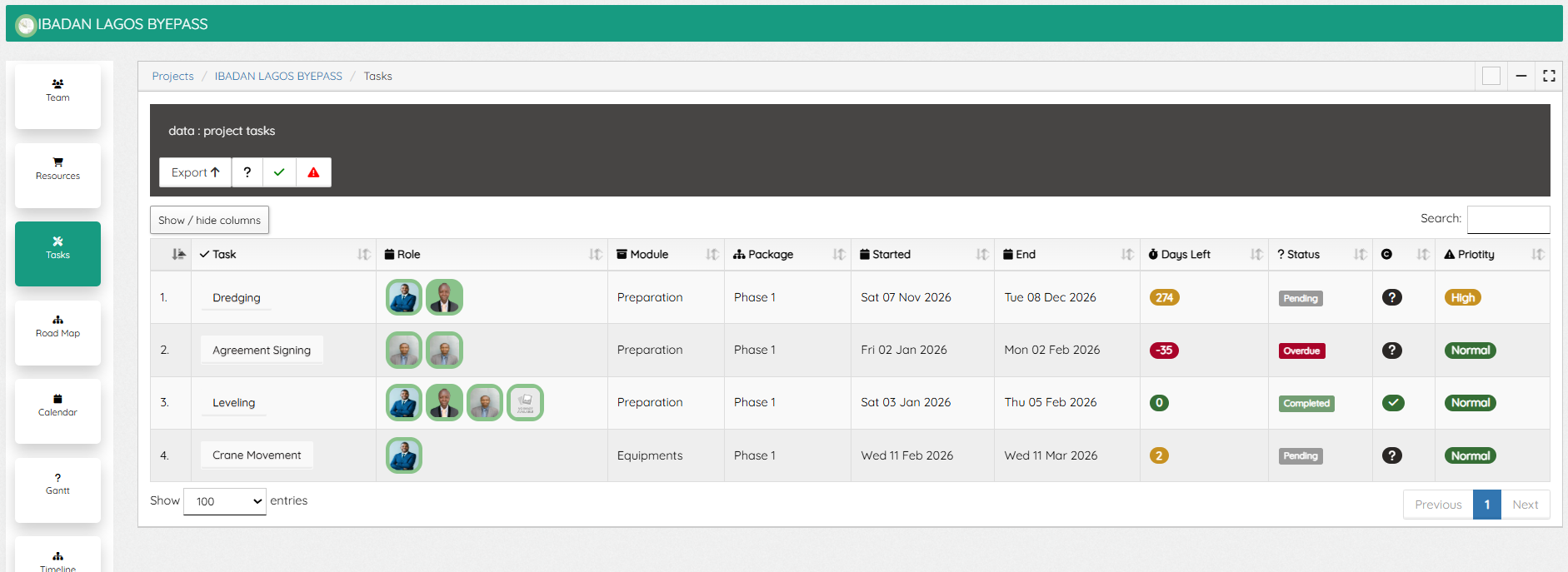


The Tasks page showing all assigned tasks, the team members assigned, the starting /ending dates, days left, statuses, compliance status and priority.


Project Team members assigned on a Tasks are notified by email, and also see these tasks on their self-service dashboard. A Click on a task open up the Task window with the task details and a second tab for  “Activity Log”.


To add a new comment, response to a Task, click the Activity Log tab, and the + sign to open up the comment window. Note: only project team members and those assigned to a task can access this.


Project Team members with Tasks Management permissions can mark a task completed or not, also Compliance officers can perform their auditing on task.

Updated on November 4, 2026

What are your Feelings

  • Happy
  • Normal
  • Sad

Share This Article :

  • Facebook
  • X
  • LinkedIn
  • Pinterest
Project ResourcesProject Compliance

Powered by BetterDocs

Profitaa Logo
  • Home
  • Features
  • Preview
  • FAQ
  • Pricing
  • Links

© 2026 Profitaa

Facebook X Instagram TikTok YouTube
Scroll to top
  • Home
  • Features
    • NRS E-Invoicing Integration
    • Procurement, Multi-Inventory & Stock Control
    • Automated HR & Payroll
    • Simple Accounting Software for Growing Businesses
    • Business Investments & Banking
    • Production Pipeline & Manufacturing
    • Asset & Property Management
    • Easy Project Management & Task Tracking Software
    • For Accountants & Consultants
  • Preview
  • FAQ
  • Pricing
    • Basic Plan Pricing for Startups & Entrepreneurs
    • Standard Plan for Expanding Enterprises
    • Compare Pricing Plans; Basic vs Standard vs enterprise
  • Links
    • Contact Support
    • Publications
    • Enterprise Security, Trust & Data Compliance
    • Privacy Policy
    • Terms of Services