

Skip to content
Profitaa Logo

Profitaa

  • Home
  • FeaturesExpand
    • NRS E-Invoicing Integration
    • Procurement, Multi-Inventory & Stock Control
    • Automated HR & Payroll
    • Simple Accounting Software for Growing Businesses
    • Business Investments & Banking
    • Production Pipeline & Manufacturing
    • Asset & Property Management
    • Easy Project Management & Task Tracking Software
    • For Accountants & Consultants
  • Preview
  • FAQ
  • PricingExpand
    • Basic Plan Pricing for Startups & Entrepreneurs
    • Standard Plan for Expanding Enterprises
    • Compare Pricing Plans; Basic vs Standard vs enterprise
  • LinksExpand
    • Contact Support
    • Publications
    • Enterprise Security, Trust & Data Compliance
    • Privacy Policy
    • Terms of Services
Sign Up
Account Login
Profitaa Logo
Profitaa
SIGN UP
Account Login
View Categories
  • Home
  • Help Topics
  • Account
  • Payroll Configurations

Payroll Configurations

1 min read

0:00 / 1:15
  • View as Markdown Open this page as plain Markdown (opens in a new tab)
  • Open in ChatGPT Ask questions about this page (opens in a new tab)
  • Open in Claude Ask questions about this page (opens in a new tab)
  • Open in Google AI Studio Ask questions about this page (Google account required) (opens in a new tab)

As part of the process of generating payroll, components such as PENSION and PAYE (Pay as You Earn) can be configured to generate and calculate based on set formulas. You can have several of these configurations and decide which to use when generating a new Payroll.
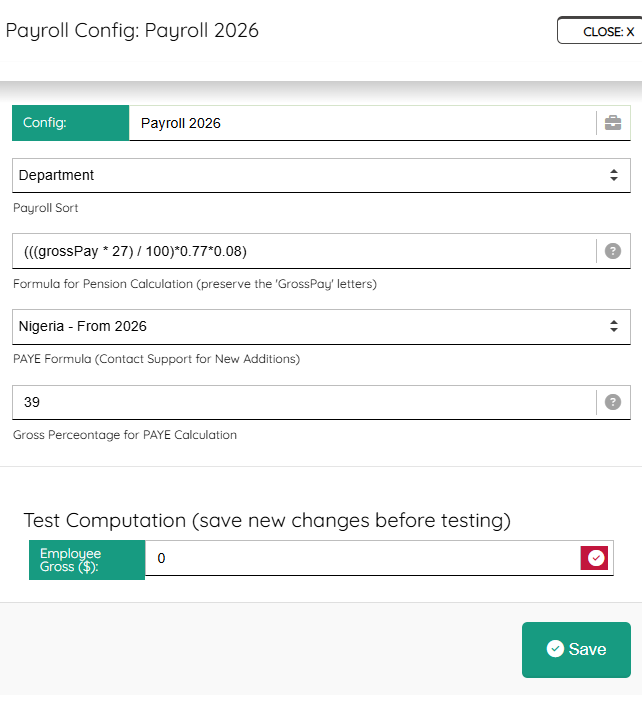


Enter a unique configuration name, select how you want the sortings (you can always come back to change this), then:


1. Formula for Pension: This formula can be modified as it pleases but remember to preserve the ‘grossPay’ which is the actual gross pay off an employee, as set on the HR  – Engagement Record.


2. PAYE formula: Select from a dropdown of available PAYE formula. Profitaa will update the list as we receive more formulas from clients and users. You can contact us if you want your formula to be listed. These formulas are tested to confirm they conform to the Country’s operating Tax laws.


3. Gross Percentage for PAYE: This is the percentage of employee Gross Pay to be used for PAYE calculation.


Test Computation
We recommend you have fun testing your pension and PAYE settings (save before testing), enter any Gross Pay amount e.g 300,000 for an employee earning that amount per month, then click the red check sign to calculate a sample Pension and PAYE using your set formulas.

Updated on November 4, 2026

What are your Feelings

  • Happy
  • Normal
  • Sad

Share This Article :

  • Facebook
  • X
  • LinkedIn
  • Pinterest
Payroll AutomationPayroll Group

Powered by BetterDocs

Profitaa Logo
  • Home
  • Features
  • Preview
  • FAQ
  • Pricing
  • Links

© 2026 Profitaa

Facebook X Instagram TikTok YouTube
Scroll to top
  • Home
  • Features
    • NRS E-Invoicing Integration
    • Procurement, Multi-Inventory & Stock Control
    • Automated HR & Payroll
    • Simple Accounting Software for Growing Businesses
    • Business Investments & Banking
    • Production Pipeline & Manufacturing
    • Asset & Property Management
    • Easy Project Management & Task Tracking Software
    • For Accountants & Consultants
  • Preview
  • FAQ
  • Pricing
    • Basic Plan Pricing for Startups & Entrepreneurs
    • Standard Plan for Expanding Enterprises
    • Compare Pricing Plans; Basic vs Standard vs enterprise
  • Links
    • Contact Support
    • Publications
    • Enterprise Security, Trust & Data Compliance
    • Privacy Policy
    • Terms of Services